> ## Documentation Index
> Fetch the complete documentation index at: https://lindyai-docs-email-alerts-update.mintlify.site/llms.txt
> Use this file to discover all available pages before exploring further.

# Smart Scheduling

> Find times, send invites, and lock in meetings. No more back-and-forth.

## Let Lindy Handle Scheduling

<div style={{ display: 'flex', justifyContent: 'center', margin: '2rem 0' }}>
  <div className="video-card" style={{ maxWidth: '85%', width: '100%' }}>
    <video src="https://mintcdn.com/lindyai-docs-email-alerts-update/ZiOLJO-F8OhST6ui/lindy-brand-assets/scheduling-find-time.mp4?fit=max&auto=format&n=ZiOLJO-F8OhST6ui&q=85&s=d65e72defce6c7dc08e42c8d6e9df857" width="600" autoPlay muted loop playsInline style={{ display: 'block', width: '100%', borderRadius: '16px', maxHeight: 'none' }} data-path="lindy-brand-assets/scheduling-find-time.mp4" />
  </div>
</div>

Just delegate the meeting. Lindy finds the time, sends the invite, and puts it on your calendar. No scheduling links, no back-and-forth emails.

## CC-Based Scheduling (Coming Soon)

CC your Lindy assistant's email address on any thread where you're trying to find time, and Lindy takes over as your scheduling assistant. It reads the thread, checks your calendar, and handles the rest: no questions, no back-and-forth.

<Steps>
  <Step title="CC Lindy on a scheduling thread">
    Add your Lindy email address to the **CC line** of an email where you and the other person are trying to find a time. The CC is the signal for Lindy to step in.
  </Step>

  <Step title="Lindy reads the thread and takes over">
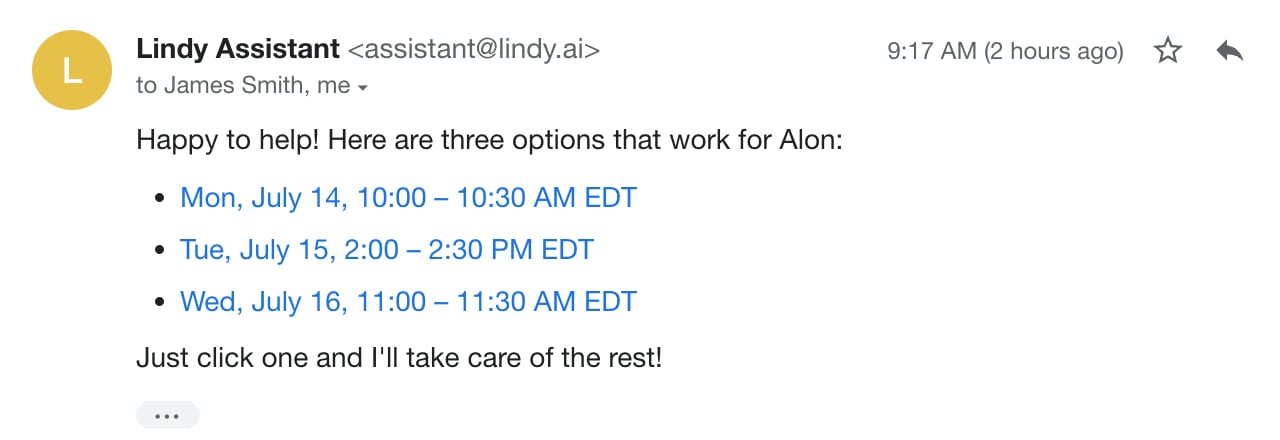
    Lindy pulls the details from the thread (duration, date range, time of day, attendees, timezone) and fills any gaps with sensible defaults. If you've already agreed on a time, it books it. If not, it replies once with 3 open slots as clickable links.
  </Step>

  <Step title="The meeting gets booked">
    The meeting books automatically on your calendar with invites sent, exactly like Smart Scheduling above.
  </Step>
</Steps>

### Two ways it plays out

**When the time's already agreed**, Lindy books it. **When you still need a time**, Lindy proposes three slots. Either way, the Cc is all it takes.

<div style={{ maxWidth: '640px', margin: '1.5rem auto 0.5rem' }}>
  <div style={{ fontSize: '17px', fontWeight: 700, color: '#92740f', marginBottom: '0.75rem' }}>The time's already agreed</div>

  <Steps>
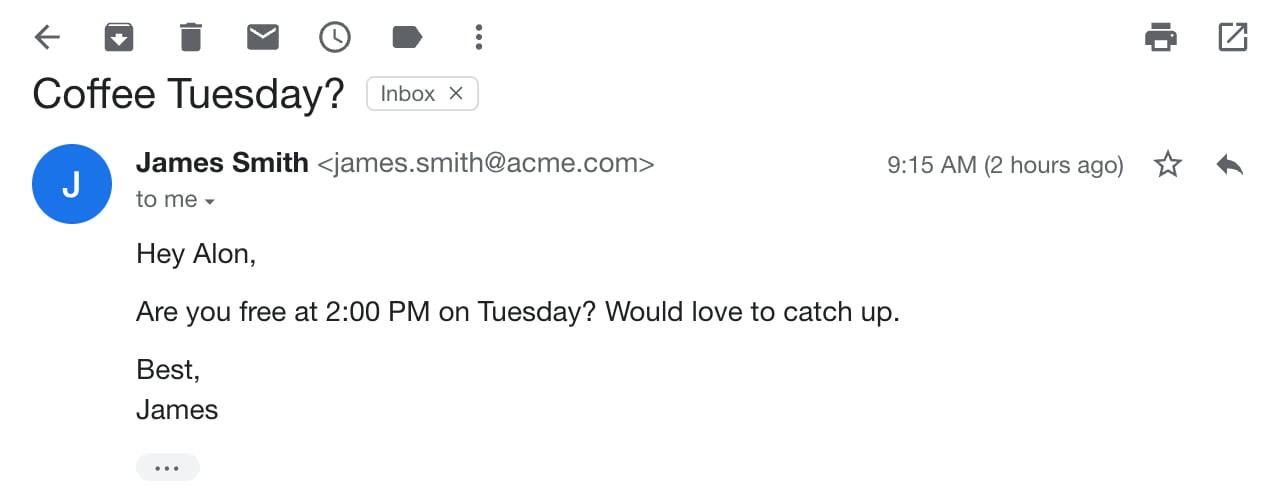
    <Step title="James suggests a specific time">
      <img src="https://mintcdn.com/lindyai-docs-email-alerts-update/ZiOLJO-F8OhST6ui/lindy-brand-assets/option1a.png?fit=max&auto=format&n=ZiOLJO-F8OhST6ui&q=85&s=4435319c8ee38e8b31e2456804e0af3f" alt="James Smith emails: are you free at 2:00 PM on Tuesday? Would love to catch up." style={{ display: 'block', width: '100%', borderRadius: '12px' }} width="1280" height="500" data-path="lindy-brand-assets/option1a.png" />
    </Step>

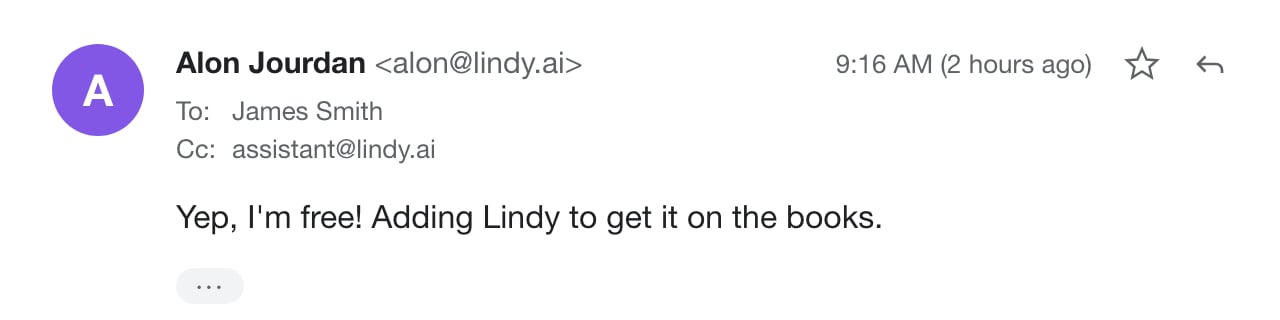
    <Step title="You reply and add Lindy to the thread">
      <img src="https://mintcdn.com/lindyai-docs-email-alerts-update/ZiOLJO-F8OhST6ui/lindy-brand-assets/option1b.png?fit=max&auto=format&n=ZiOLJO-F8OhST6ui&q=85&s=1039a52c82c8f0ee873482cc297d59ef" alt="You reply with assistant@lindy.ai on the Cc line: Yep, I'm free! Adding Lindy to get it on the books." style={{ display: 'block', width: '100%', borderRadius: '12px' }} width="1280" height="320" data-path="lindy-brand-assets/option1b.png" />
    </Step>

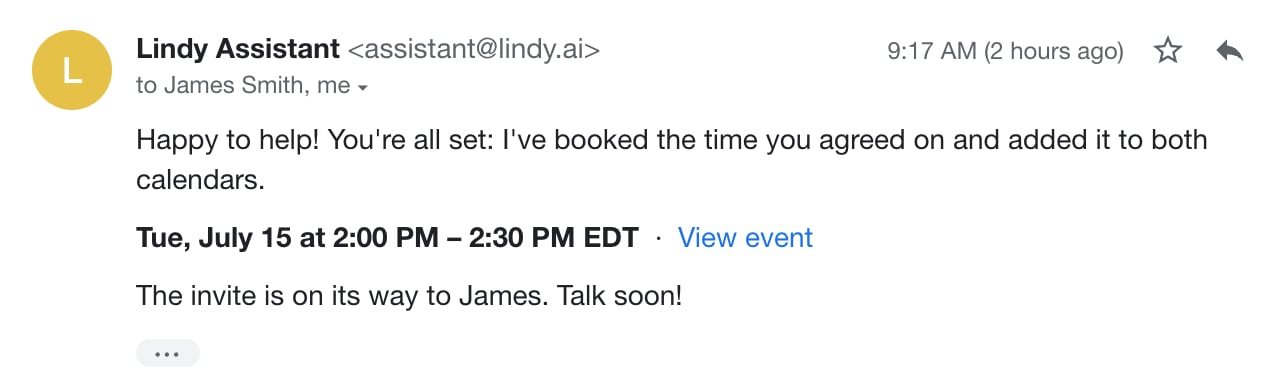
    <Step title="Lindy books it and sends the invite">
      <img src="https://mintcdn.com/lindyai-docs-email-alerts-update/ZiOLJO-F8OhST6ui/lindy-brand-assets/option1c.png?fit=max&auto=format&n=ZiOLJO-F8OhST6ui&q=85&s=7f079d3169dfe0f40465493543413854" alt="Lindy Assistant replies confirming the meeting is booked on both calendars for Tuesday 2:00 to 2:30 PM EDT and the invite is on its way to James" style={{ display: 'block', width: '100%', borderRadius: '12px' }} width="1280" height="368" data-path="lindy-brand-assets/option1c.png" />
    </Step>
  </Steps>
</div>

<div style={{ maxWidth: '640px', margin: '2.25rem auto 0.5rem' }}>
  <div style={{ fontSize: '17px', fontWeight: 700, color: '#92740f', marginBottom: '0.75rem' }}>You still need to find time</div>

  <Steps>
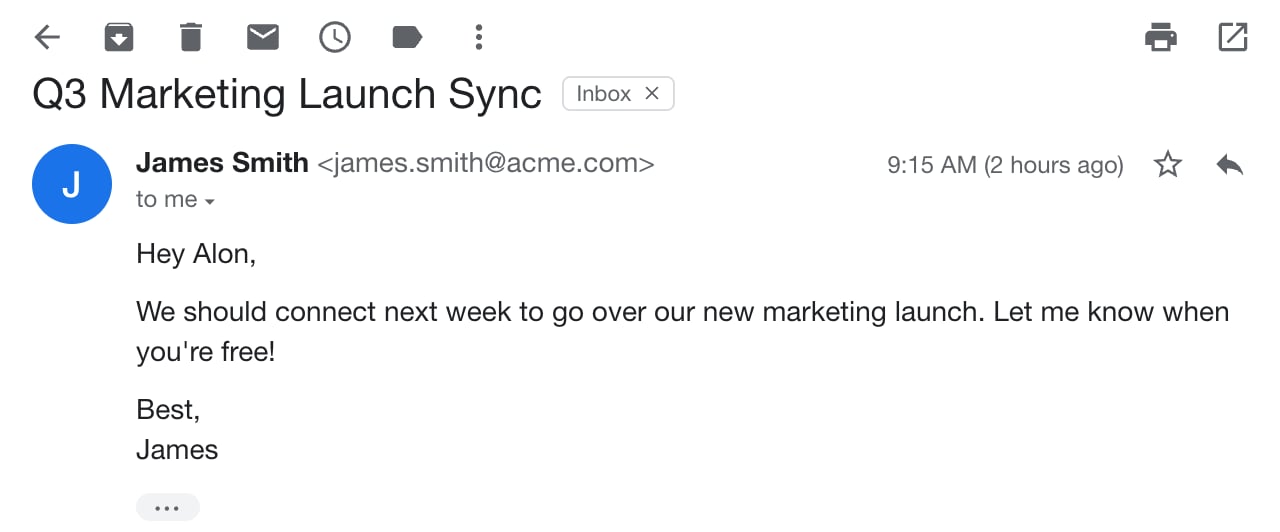
    <Step title="James asks to find time next week">
      <img src="https://mintcdn.com/lindyai-docs-email-alerts-update/ZiOLJO-F8OhST6ui/lindy-brand-assets/option2a.png?fit=max&auto=format&n=ZiOLJO-F8OhST6ui&q=85&s=ab41272223dd95011d261152962ded36" alt="James Smith emails: we should connect next week to go over our new marketing launch" style={{ display: 'block', width: '100%', borderRadius: '12px' }} width="1280" height="532" data-path="lindy-brand-assets/option2a.png" />
    </Step>

    <Step title="You reply and add Lindy to the thread">
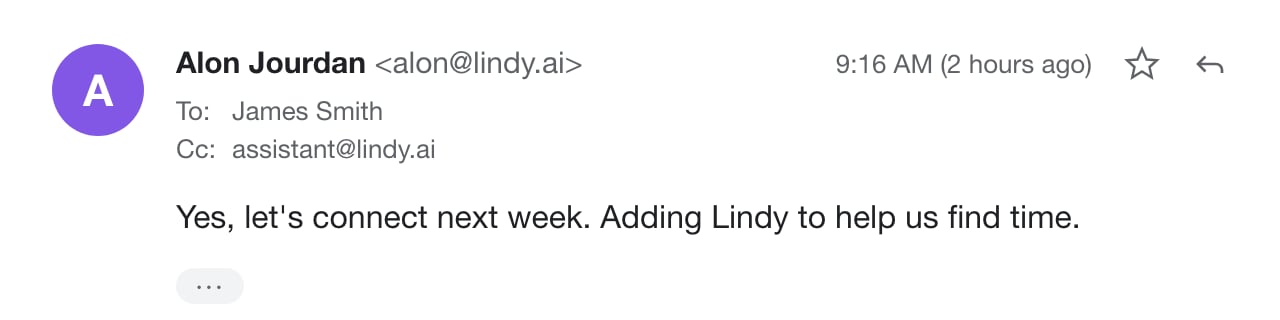
      <img src="https://mintcdn.com/lindyai-docs-email-alerts-update/ZiOLJO-F8OhST6ui/lindy-brand-assets/option2b.png?fit=max&auto=format&n=ZiOLJO-F8OhST6ui&q=85&s=4ab48f00de28e8811f2e9d348b4bc040" alt="You reply with assistant@lindy.ai on the Cc line: Yes, let's connect next week. Adding Lindy to help us find time." style={{ display: 'block', width: '100%', borderRadius: '12px' }} width="1280" height="320" data-path="lindy-brand-assets/option2b.png" />
    </Step>

    <Step title="Lindy checks your calendar and offers three times">
      <img src="https://mintcdn.com/lindyai-docs-email-alerts-update/ZiOLJO-F8OhST6ui/lindy-brand-assets/option2c.png?fit=max&auto=format&n=ZiOLJO-F8OhST6ui&q=85&s=9b7846cfd48237b50e51b47d32f246e8" alt="Lindy Assistant replies: Happy to help! Here are three options that work for Alon, with three bookable time slots as bullet points" style={{ display: 'block', width: '100%', borderRadius: '12px' }} width="1280" height="440" data-path="lindy-brand-assets/option2c.png" />
    </Step>
  </Steps>
</div>

<Note>
  Lindy only acts when **both** are true: your Lindy email is on the CC line, **and** the thread shows scheduling intent ("let's find time", "can we grab 30 min?"). CC without a scheduling ask, or a scheduling ask without the CC, won't trigger it.
</Note>

<Tip>
  Want to constrain the options? Just say so in the thread ("mornings only", "next week", "30 min"). Otherwise Lindy uses your standard meeting length, working hours, and buffers.
</Tip>

## Auto Drafting

When someone emails you about scheduling a meeting, Lindy detects the request and offers times in a draft reply on your behalf. Your recipient picks one in a single click and the meeting drops onto both calendars.

* When someone emails to schedule, Lindy offers times in a draft reply
* Recipients book a slot in one click — no back-and-forth
* Save \~3 minutes per invite

<Steps>
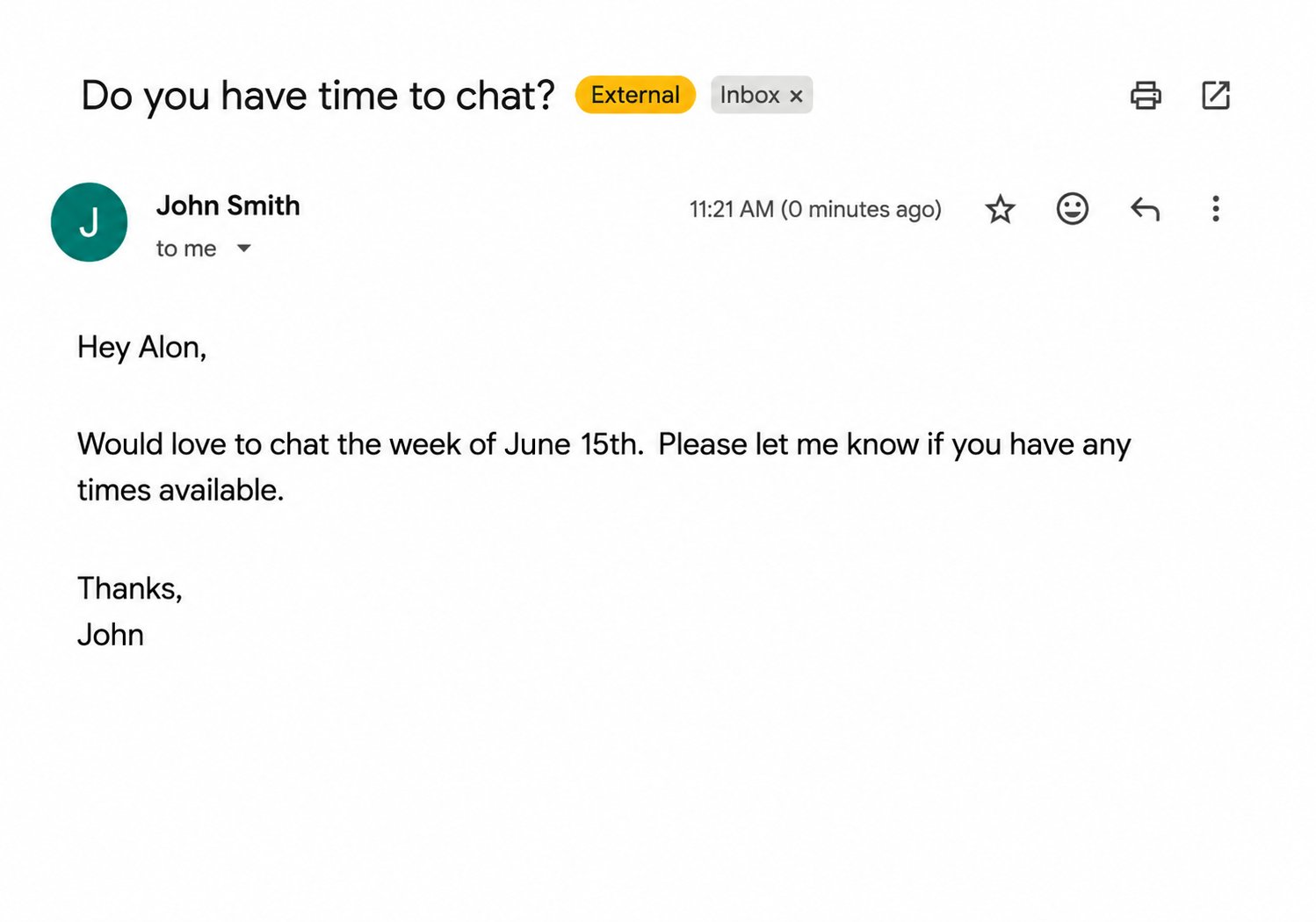
  <Step title="Someone emails you asking for a time to meet">
    Lindy detects the scheduling request and takes over — no action needed from you.

    <img src="https://mintcdn.com/lindyai-docs-email-alerts-update/K6U__iECWJrJWK0E/lindy-brand-assets/chatv1.png?fit=max&auto=format&n=K6U__iECWJrJWK0E&q=85&s=5163d3e90d0d27a34f21ec1b4f008d6f" alt="Incoming email requesting a meeting" style={{ display: 'block', width: '100%', maxWidth: 'none', maxHeight: 'none', borderRadius: '12px' }} width="1498" height="1050" data-path="lindy-brand-assets/chatv1.png" />
  </Step>

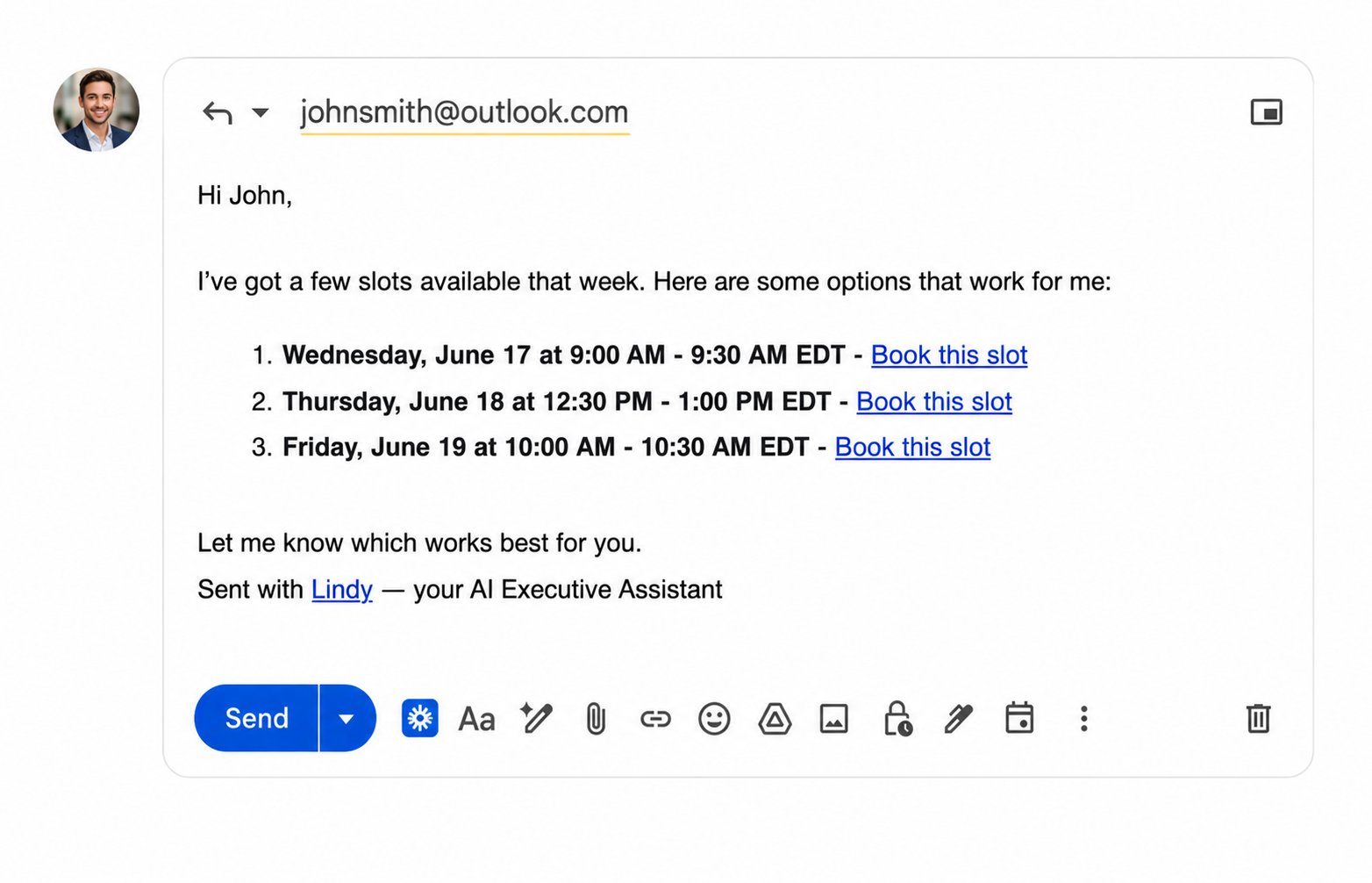
  <Step title="Lindy drafts a reply with 3 available times">
    Based on your preferred hours, buffer time, meeting length, and calendar availability, Lindy drafts a reply with three open slots as clickable links.

    <img src="https://mintcdn.com/lindyai-docs-email-alerts-update/ZiOLJO-F8OhST6ui/lindy-brand-assets/schedulev3.png?fit=max&auto=format&n=ZiOLJO-F8OhST6ui&q=85&s=25e37fc4f1042d722e49cb0233bc32e7" alt="Lindy's draft reply with 3 available time slots" style={{ display: 'block', width: '100%', maxWidth: 'none', maxHeight: 'none', borderRadius: '12px' }} width="1564" height="1006" data-path="lindy-brand-assets/schedulev3.png" />
  </Step>

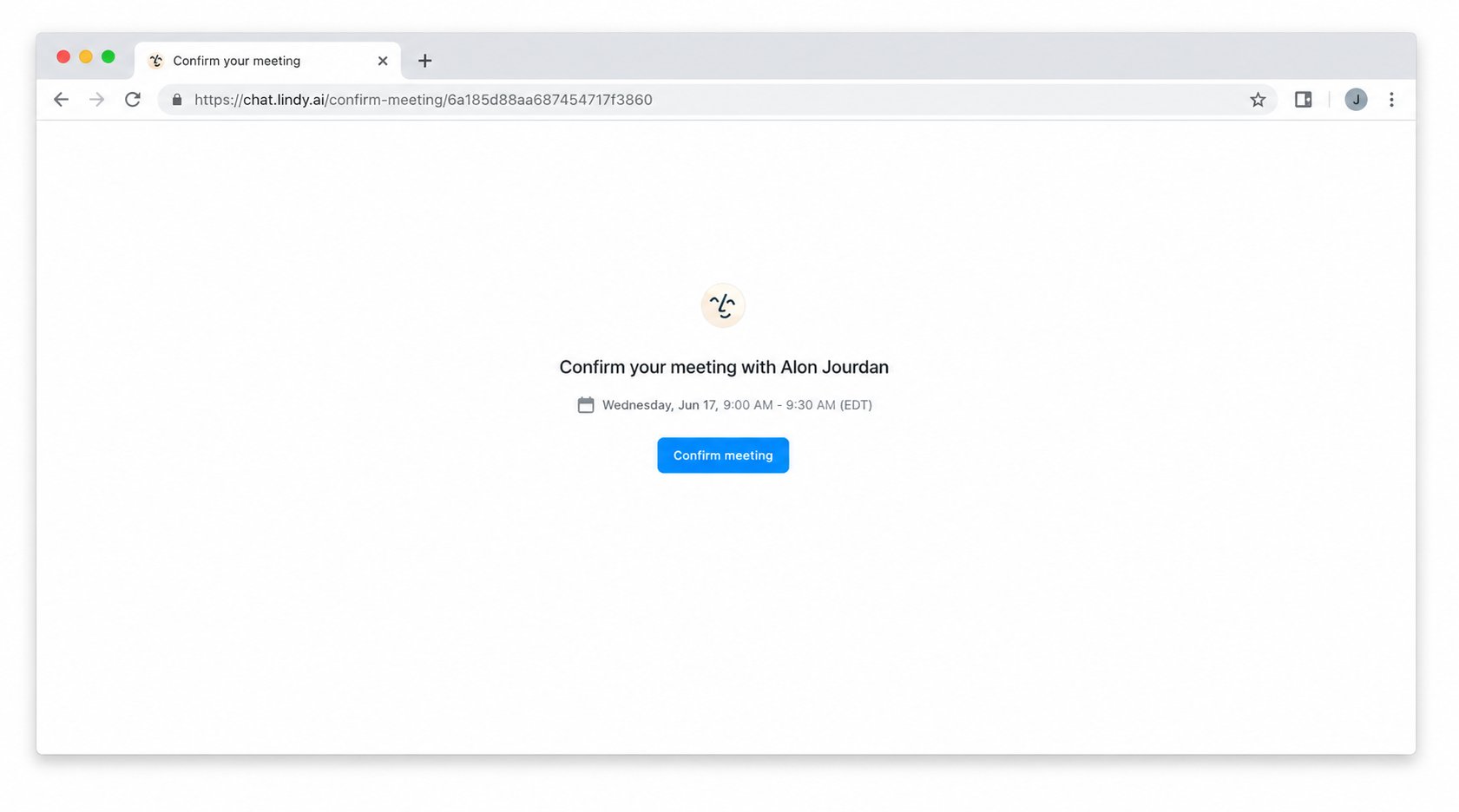
  <Step title="They click a time and it's instantly booked">
    When the other person clicks a link, the meeting is automatically added to both calendars. No back-and-forth, no scheduling tools, no manual entry.

    <img src="https://mintcdn.com/lindyai-docs-email-alerts-update/k6JGjOsUFUNSXeGL/lindy-brand-assets/meeting_browser.png?fit=max&auto=format&n=k6JGjOsUFUNSXeGL&q=85&s=5da1207d90f70c6b6fe00d28fb2832fe" alt="Meeting booked on calendar after clicking a time slot" style={{ display: 'block', width: '100%', maxWidth: 'none', maxHeight: 'none', borderRadius: '12px' }} width="1681" height="936" data-path="lindy-brand-assets/meeting_browser.png" />
  </Step>
</Steps>

### Custom Scheduling Rules

Set your scheduling rules in **Settings → Scheduling** in natural language — preferred hours, buffers, blocked times, meeting types, anything that should apply to every auto-drafted reply.

## Ad Hoc Scheduling

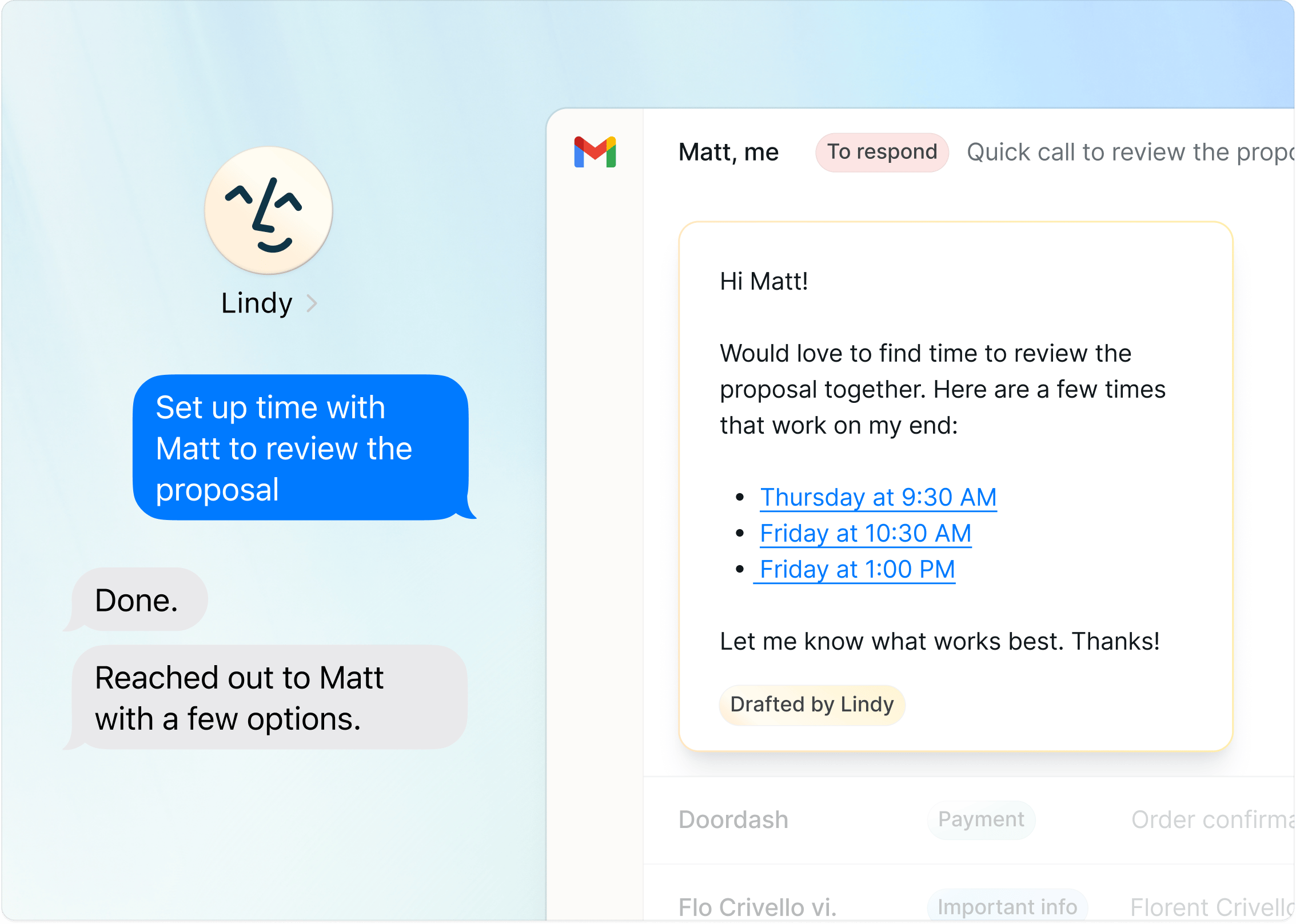
When you want Lindy to handle scheduling on your behalf, just ask. Text or message her and she'll find the time, reach out, and lock it in.

<Frame>
  <img src="https://mintcdn.com/lindyai-docs-email-alerts-update/ZiOLJO-F8OhST6ui/lindy-brand-assets/scheduling-ad-hoc.png?fit=max&auto=format&n=ZiOLJO-F8OhST6ui&q=85&s=4d6e7116ab601c9fbd168d8058385af3" alt="Texting Lindy 'Set up time with Matt to review the proposal' and getting back 'Done. Reached out to Matt with a few options.' alongside Lindy's drafted Gmail reply with time slots" width="2267" height="1617" data-path="lindy-brand-assets/scheduling-ad-hoc.png" />
</Frame>

### Add or Update Events on the Fly

Use Lindy to add events to your calendar or change them with one line of text:

* "Add a meeting location"
* "Pick a restaurant for the client dinner"
* "Swap the venue and notify attendees"
* "Move my 2pm to Thursday"
* "Cancel my call with \[name]"

Send Lindy a screenshot of a text conversation and she'll pull the meeting details onto the right day.

### End-to-End Outreach

Or send Lindy on a mission and let her run the whole loop:

> "Find time with Bob on Saturday"

She'll reach out, propose times, lock the meeting in, and add it to your calendar.

### Recurring Routines

Set up recurring workflows with one text:

> "Every week, audit my calendar and make sure I have a 45-min walk break at least once a day"

### Internal Calendars

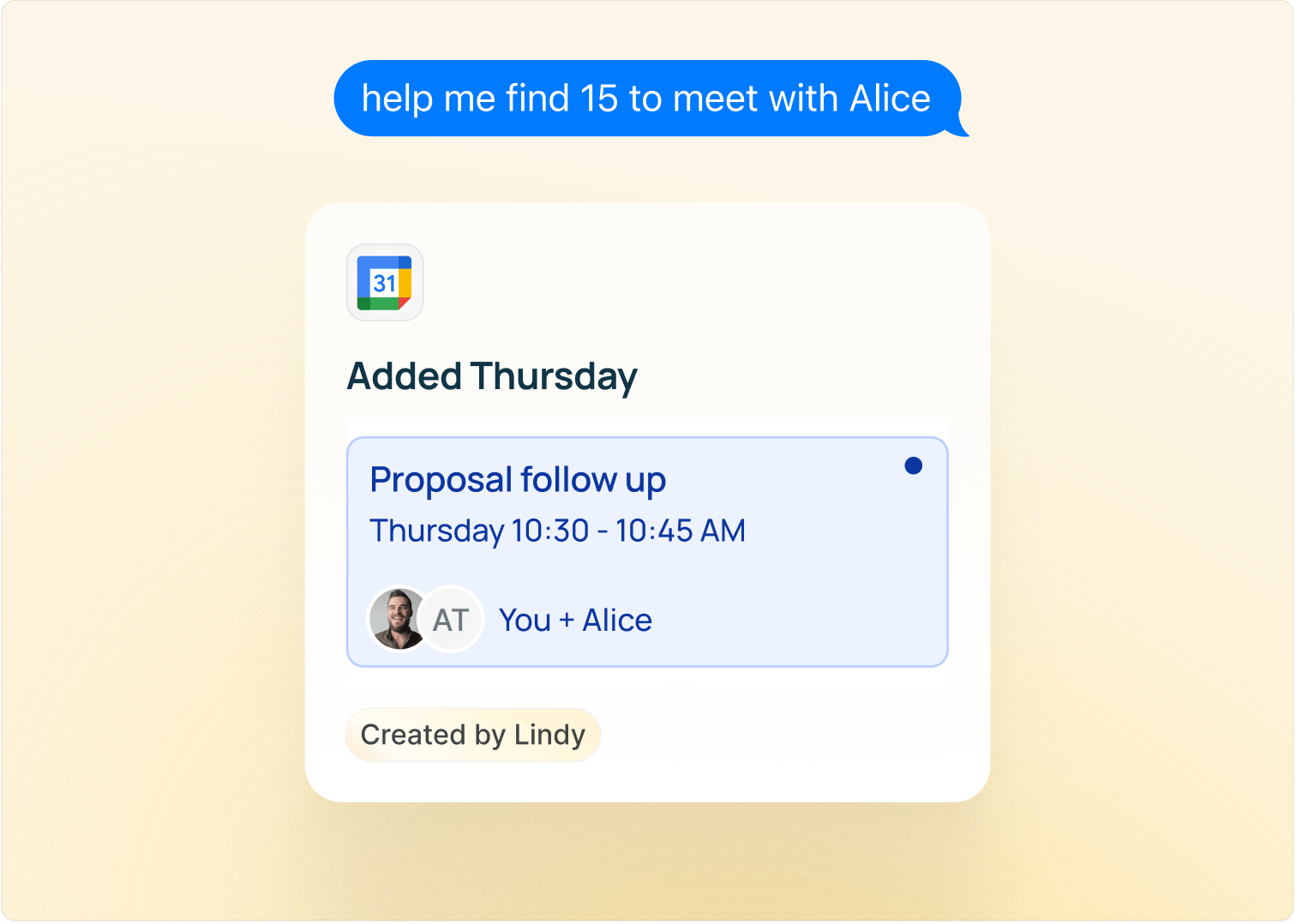
Lindy can check any teammate's calendar that's shared with your workspace, so you can ask her to find time between people on your team without any back-and-forth.
<Frame>
  <img src="https://mintcdn.com/lindyai-docs-email-alerts-update/ZiOLJO-F8OhST6ui/lindy-brand-assets/scheduling-find-internal.png?fit=max&auto=format&n=ZiOLJO-F8OhST6ui&q=85&s=7ea1385c2ed483cee946725657c75005" alt="Texting Lindy 'help me find 15 to meet with Alice' and getting back an 'Added Thursday' card with a Proposal follow up event Thursday 10:30 - 10:45 AM, You + Alice, created by Lindy" width="1512" height="1078" data-path="lindy-brand-assets/scheduling-find-internal.png" />
</Frame>

## How to Delegate

* **iMessage / SMS**: "Book a call with Sarah next Tuesday afternoon"
* **Web app**: chat at [chat.lindy.ai](https://chat.lindy.ai)

<Tip>
  Scheduling over text is the fastest option. Lindy already knows your calendar and preferences, so a simple text is all it takes.
</Tip>

## Next Steps

<CardGroup cols={2}>
  <Card title="Meeting Prep" icon="clipboard-list" href="/features/meeting-assistant/meeting-prep">
    Get context before every meeting
  </Card>

  <Card title="iMessage & SMS" icon="message" href="/features/imessage-sms">
    Everything you can delegate by texting Lindy
  </Card>
</CardGroup>